Product Price
The Ingram Micro website provides price information to include:
- MSRP
- Reseller and dealer price
- End user price
- Quantity discounts & promotions
- Government or educational price
Ensure that you are logged in to view complete pricing information.
This page provides information about multiple topics. You can find and confirm price settings on multiple screens:
Note: Also see Vendor Bids.
Show Price on Product Search Results
The Search Results screen has these price features:
1. Start a product search using steps in Product Search.
- If you set no filters, the Search Results screen provides the dealer price for products you are authorized to purchase.

2. Show only products with price available.
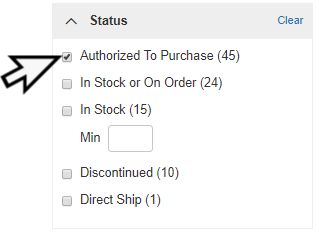
In search filters, click Status > Authorized to Purchase. In many cases, this filter will include products with available price.
3. Filter search results by price range:
- In search filters, expand Price to set the Min or Max price, or both.
- Click Apply.

4. Use the Promotion filter in search results to quickly locate products with promotion prices:

5. If you are not authorized to purchase, the Search Results does not show the price.
- View product details for such a product to find similar products that may be available.
- Filter search results or start a new search to find available products.

 Back to top
Show Price on Product Details
Use these steps to set the end user and confirm product price on the Product Details screen:
1. Click a product name from browse or search results. The Product Details screen has several price features.
The Product Details screen shows the dealer price, unless you Select End User with a different price.

2. Confirm the end user. On the Product Details screen, click Select End User.

The End User screen shows the list of existing users. Use Search to find an end user.

The confirmed price shows with the end user. This information is available during checkout and when creating a quote.

Back to top
Show Price on Cart
Another way to confirm the product price is on the Cart screen.
- Add a product to the cart. When the price is available, the initial price is the dealer price.

- The Cart screen shows dealer price unless you select an end user. Use these steps to set the end user.
- To set the end user for a product in the active cart, click End User for that line item. An End User list appears.
- Select one end user. You can edit that user, or add to favorites.
- Use Search to find an end user.
- Click ADD END USER if the end user for this order is not in your user list. Provide all information as prompted.
- Click SELECT END USER to apply this user to the product on the cart. This sets the product price in the Cart.

Back to top
Show Special Price
When you search products, you may see a product status flag that indicates a special price or bid price.
- Click the flag for more information.

Government & Educational Pricing
When you select End User from the Product Details screen, you can set the user type. Options vary by product and end user.

Back to top
Frequently Asked Questions
If I use special pricing when checking out with a cart, will the special price be visible on the Order and Invoice?
Yes. Any discount, bid, or special price you set with the cart during checkout is visible on additional records, such as Order History and Invoice List.
Back to top